#WEBWONDERS : The browser console is your friend

When writing web client applications with TMS WEB Core, chances are you will be spending quite some time in the browser developer tools. This is the place where you can debug your web client applications and can inspect every detail of your web application: the DOM, source, network, performance, local storage, … in a nutshell a wealth of useful information.
One of the capabilities of the browser developer tools is the console and from your application you can add logging statements to output these in the browser console.
The closest comparison with the Windows desktop application development world is the OutputDebugString() command that sends text to a debugger. The direct equivalent is using console.log(“Hello world”) that will do exactly the same but to the browser console. But all similarities end here.
The console object that is fully available as Pascal class in a TMS WEB Core web client application has many more options. This object is described here: https://www.w3schools.com/jsref/obj_console.asp
Timing functions to measure performance
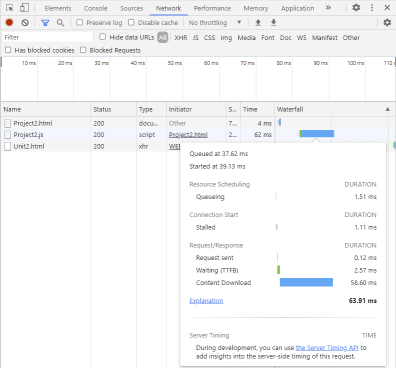
A first convenience of the console object is the ability to time certain parts of your code. You can do this by calling console.time(‘identifier’) to start a browser timer and when the part of the code was executed, call console.timeEnd(‘identifier’) and the browser will output the time difference in the browser console.
This example demonstrates the timing of a bubble sort algorithm (for the sake of having some code that takes some time to execute)
function BubbleSort( list: TStringList ): TStringList;
var
  i, j: Integer;
  temp: string;
begin
  // bubble sort
  for i := 0 to list.Count - 1 do begin
    for j := 0 to ( list.Count - 1 ) - i do begin
      if ( j + 1 = list.Count ) then
        continue;
      if ( list.Strings[j] > list.Strings[j+1] ) then begin
        temp              := list.Strings[j];
        list.Strings[j]   := list.Strings[j+1];
        list.Strings[j+1] := temp;
      end;
    end;
  end;
  Result := list;
end;

function GenerateRandomWord(CONST Len: Integer=16; StartWithVowel: Boolean= FALSE): string;
const
  sVowels: string = 'AEIOUY';
  sConson: string = 'BCDFGHJKLMNPQRSTVWXZ';
var
  i: Integer;
  B: Boolean;
begin
  B := StartWithVowel;
  SetLength(Result, Len);
  for i := 1 to len DO
   begin
    if B then
      Result[i] := sVowels[Random(Length(sVowels)) + 1]
    else
      Result[i] := sConson[Random(Length(sConson)) + 1];
    B:= not B;
   end;
end;

procedure TForm1.MeasureTime;
var
  sl: TStringList;
  i: integer;
  d: dword;
  mr: TMyRec;

begin
  console.time('bubble');
  sl := TStringList.Create;

  for i := 0 to 2000 do
  begin
    sl.Add(generaterandomword(8,false));
  end;

  BubbleSort(sl);

  console.timeEnd('bubble');

  sl.Free;
end;
The result in the browser console looks like:

Inspecting values of variables, records, objects
The console.log() call can have a variable number of arguments of different types. You can call for example:
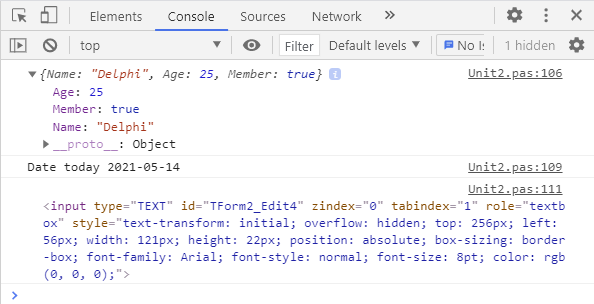
console.log('Date today',DateToStr(Now));and this will output today’s date in the console.
But also objects or records will be shown with all their details in the console, as this example for a record demonstrates:
type
  TMyRec = record
    Name: string;
    Age: integer;
    Member: boolean;
  end;
var
  mr: TMyRec;

begin
  mr.Name := 'Delphi';
  mr.Age := 25;
  mr.Member := true;

  console.log(mr);
end;
Or take this example, where the details of a HTML element are displayed in the console, in this example the HTML element used for a TWebEdit:
console.log(WebEdit1.ElementHandle);
All these statements combined outputted in the browser console:
Formatting output
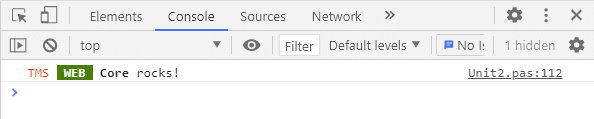
If you thought the browser could only output dull fixed text, you are wrong! On top of that, the console.log() command allows you to use CSS specifiers to format text. By specifiying %c in the text parameter of a console.log() call, it will take the next parameter as a CSS style to apply to the text following the %c specifier.
console.log('%cTMS %c WEB %c Core%c rocks!','color:red','background-color:green;color:white;font-weight:bold', 'font-weight: bold','""');with the corresponding output in the browser console: