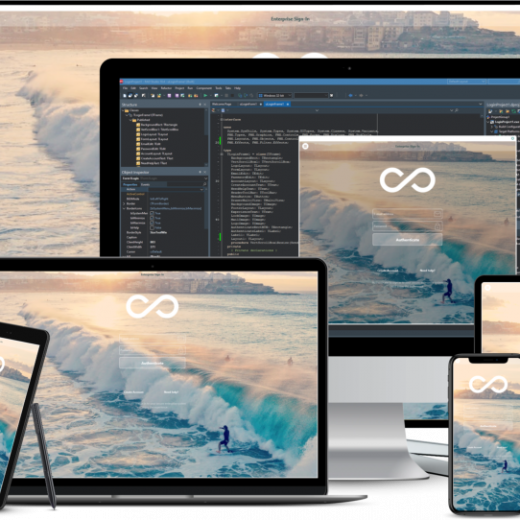
RAD Server and Sencha CRUD Grid
This post shows how to create a RAD Server REST Endpoint (JSON Web Service ) using the RAD Server Database Endpoints Wizard using a FireDAC Connection, to create REST Endpoints for CRUD functionality. And create a Sencha Web Client Application with a CRUD Grid for our data! RAD Server Steps1. Using RAD Studio, Delphi or C++ Builder:File | New | Other | RAD Server | RAD Server Package | Click OK. 2. On the RAD Server Package Wizard, select Create package with resource: Click Next.3. Enter a Resource Name (any name). I’m using the name MyDataSelect DataModule for the File type. Click Next. 4. On the RAD Server Package Wizard, un-select Sample Endpoints, and un-select API Documentation.Select Database Endpoints Click Next. 5. Select an existing FireDAC connection, and Login to your database. Click OK. 6. Select one or more tables to use for your Sencha CRUD Grid Web application. Here I’m selecting Country, Customer and Employee Tables from my Employee Database: Click Finish. 7. Your RAD Studio, Delphi or C++ Builder creates your DataModule, with your FireDAC Connection (FDConnection), and FireDAC Query components (qryCountry, qryCustomer, qryEmployee) for your Country, Customer and Employee Tables, and RAD Server (EMS) DataSetResource Components: The new EMSDataSetResource component allows for greater control of the data retrieved by desktop, multi-device, web and other service-based applications that connect to your RAD Server application. Using this new component RAD Server applications can provide access all of a data set’s data, a specific page of data, updating a data set record, creating a new data set record, and deleting a data set entry. 8. The Database Endpoints wizard we used in step 4, also added TEMSDataSetResource components for each of the tables. Looking in the Object Inspector, we see the Allowed Actions property for these tables: List, Get, Post, Put and Delete, to give us full CRUD functionality! 9. Save (File | Save Project As) your RAD Server Module in a new folder, with the name: RadServer_Sencha_CRUD: 10. Build and Run your RAD Server Module. Your RAD Server Log shows you your REST Endpoints to access data from your Tables. For example: GET for the Employee table has this REST endpoint: {“name”:”dsrEMPLOYEE.List”,”method”:”Get”,”path”:”mydata/EMPLOYEE/”The RESTEndpoint would be: http://localhost:8080/mydata/EMPLOYEE/ 11. To test this Rest Endpoint, click the Open Browser button on the RAD Server UI. and Enter the REST Endpoint: http://localhost:8080/mydata/EMPLOYEE/This is your JSON Web Service for your Employee table data.You should see a JSON Array returned for your Employee Data: Great! The RAD Server part is complete.Next, lets create a Sencha Web Client Application with a CRUD Grid for our data! Sencha Web Client Application Steps 1. Using Sencha Architect; 2. New Project | Blank | Classic Project Click Create. 3. This creates a new Sencha Ext JS Classic Web Application: 4. Click the Sencha Data UI Builder icon: 5. For the Data Source, select JSON Web Service: 6. For the Model Name, let’s call it myModel. For the URL of this service, enter: http://localhost:8080/mydata/EMPLOYEE/ 7. Parts to Create. Select all parts (Model, Store, List View, Details View, Form View, and Controller. Click Import Fields: 8. All the columns (fields) from your Employee table get added: 9. Click Generate 10. The Sencha Project Inspector shows your project has been created with your Views, and Model: 11. Select your MyModels View. Your […]