From the blog

Everything You Need To Know About Spring4D Delphi Development Framework

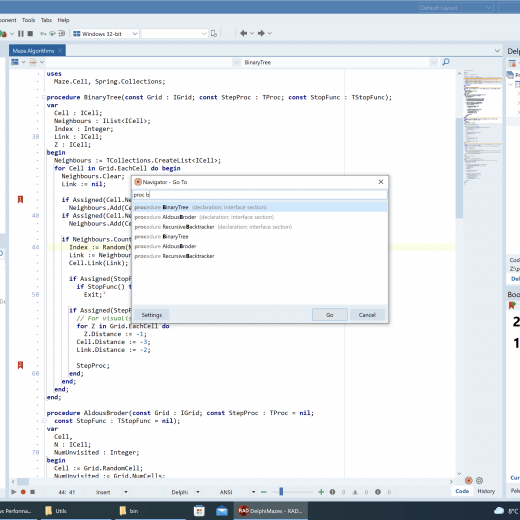
In this webinar from DelphiCon, Stefan Glienke introduces us to the Spring4D framework and how it can take your Delphi and Windows application development to the next level. This Delphi-based framework is packed with a number of useful modules which will be explained in this video along with their actual implementations in Delphi. Spring4D is described as a great open-source library for Delphi XE and higher. This library is freely accessible and can be used for both commercial and non-commercial projects. How can Spring4D leverage and enhance the power of Delphi? The Spring 4D framework extends the Delphi RTL and is known for its advanced use of Generics and enhanced RTTI. The framework is also under active development and is practicing the so-called “Dogfooding” which means the author of the software and the team behind it is actively using the framework for their own commercial software. Spring4D also follows the principle of “Pick and Choose” so it doesn’t dictate how you have to write your own application. You simply take the useful things for your code without being forced to do things in a certain way. Spring4D contains a number of different modules including the common types like Nullable and Event, Smart Pointers like Shared and Weak, Interface-base collection types, and reflection extensions. Aside from explaining the purpose of each module, Stefan will also demonstrate how each of these can be implemented in Delphi. To know more about Spring4D and how this framework can possibly take your Delphi development to the next level, feel free to watch the video below.

Read More

UI Components: They Are Not As Difficult As You Think

  As a web application developer, you must have a deep understanding of UI components. You need to have a clear idea about how users interact with them. It will help you to develop user-friendly web applications. There are various JavaScript libraries and frameworks that can help you build an attractive user interface. However, which is the best one? Does it enable you to create a beautiful interface for your app easily? In this post, you will find all the details. What are UI components? UI components are the most integral parts of a web application. They consist of all the app’s styles and components, such as buttons, input fields, icons, text, etc. They are the core building blocks for all applications. UI components are responsible for interactions between the user and the application. They facilitate an effective user experience, and they allow the users to navigate through the application easily. Also, the UI components help them to efficiently perform various functions, like adding/editing information, filtering data, selecting a date on the calendar, etc. Why should you use UI components? Quickly create the user interface of your web application Reduce code duplication by using reusable components Save development time and money Easily update the UI when required How can I easily create UI components for my JavaScript application? You can easily create UI components for your JavaScript web application using Sencha Ext JS. It is the most comprehensive framework for building data-intensive apps for all modern devices. The UI of Ext JS applications is made up of widgets. They are known as components, and they are subclasses of the Ext.Component class. You can easily extend them to create a customized component for your web application. How can Sencha Ext JS help me in quickly creating UI components? Sencha Ext JS allows you to use reusable code. As a result, you can easily create UI components. Also, it doesn’t require you to get involved with a lot of coding. You can create UI components with just a few lines of code. Let’s take a look at some practical examples. How can I quickly create a calendar for scheduling events? The Ext JS calendar is a powerful UI component for creating custom calendars. It allows you to use the date and event data, just like Google Calendar. Here is an example: The calendar allows you to schedule your work and personal events easily. It comes with a minimalistic design. To create it, you have to follow these steps: 1. First, you need to define a new custom class, called KitchenSink.view.calendar.Month. Then you have to extend Ext.panel.Panel. Also, you need to define the type of UI component, which is calendar-month-view. Ext.define(‘KitchenSink.view.calendar.Month’, {    extend: ‘Ext.panel.Panel’,     xtype: ‘calendar-month-view’, 2. Then you have to add this code:    requires: [        ‘KitchenSink.data.calendar.Month’,        ‘Ext.calendar.panel.Month’,        ‘Ext.calendar.List’    ],    width: 1000,     height: 600, 3. Next, you have to create the viewModel.    viewModel: {        data: {            value: Ext.Date.getFirstDateOfMonth(new Date())        },        stores: {            calStore: {                type: ‘calendar-calendars’,                autoLoad: true,                proxy: {                    type: ‘ajax’,                    url: ‘/KitchenSink/CalendarMonth’                }            }        }     }, 4. Now, you have to specify the layout, bind, and titleAlign fields.    layout: ‘border’,    bind: {        title: ‘{value:date(“M Y”)}’    […]

Read More

How To Make Powerful Data Visualizations With Matplotlib

Did you know it’s easy to make use of some truly excellent Python libraries to super-charge your Delphi app development on Windows? Adding Python to your toolbox of Delphi code can enhance your app development, bringing in new capabilities which help you provide innovative and powerful solutions to your app’s users, which combine the best of Python with the supreme low-code and unparalleled power of native Windows development you get with Delphi. Are you looking for how to build a GUI for powerful and visually stunning data visualizations? You can build publication-quality figures with Matplotlib on Delphi. Matplotlib can be used in Python scripts, the Python and IPython shell, web application servers, and various graphical user interface toolkits (including Delphi!). This post will show you how to build a Delphi GUI app, dedicated to the Matplotlib library. Watch this video by Jim McKeeth, as a comprehensive introduction about why you can love both Delphi and Python at the same time: What is the Matplotlib Library? Matplotlib is a comprehensive Python library for creating static, animated, and interactive visualizations. Matplotlib produces publication-quality figures in a variety of hardcopy formats and interactive environments across platforms. Matplotlib makes easy things easy and hard things possible. Create publication-quality plots. Make interactive figures that can zoom, pan, update. Customize visual style and layout. Export to many file formats. Embedded in JupyterLab and Graphical User Interfaces. Use a rich array of third-party packages built on Matplotlib. How do I get the Matplotlib library? You can easily install Matplotlib with pip: Or, you can choose conda install, to avoid complexities, as Anaconda is known as the most trusted distribution for Data Science related tasks: conda install -c conda-forge matplotlib conda install –c conda–forge matplotlib How do I build a Delphi GUI for the Matplotlib library? The following is the user interface structure for our project: User Interface Structure for our Matplotlib4D Project. Here is the list of Components used in the Matplotlib4D demo app: TPythonEngine TPythonModule TPythonType TPythonVersions TPythonGUIInputOutput TForm TMemo TOpenDialog TSaveDialog TSplitter TImage TPanel TLabel TComboBox TButton Navigate to the UnitMatplotlib4D.pas, and add the following line to the FormCreate, to load our basic matplotlibApp.py: Memo1.Lines.LoadFromFile(ExtractFilePath(ParamStr(0)) + ‘matplotlibApp.py’); Memo1.Lines.LoadFromFile(ExtractFilePath(ParamStr(0)) + ‘matplotlibApp.py’); You can Seamlessly Load the Matplotlib App Python File Inside the UnitMatplotlib4D.pas File. And make sure that the matplotlibApp.py is in the same directory as our Matplotlib4D.exe or inside your Delphi project folder. How to visualize data using Matplotlib on the Delphi app? Highly recommended practice:  1. This GUI was created by modifying Python4Delphi Demo34, which makes us possibly change the Python version in the runtime (this will save you from the seemingly complicated dll issues). 2. Add “Jpeg” to the Uses-list at the top of our UnitMatplotlib4D.pas code. We have to do that, because otherwise, Delphi can not understand the JPG format. With this correction, it should work. After that, the above change should look similar to this: Import Jpeg to Your Uses-list. And we can load JPG images into our TImage. 3. Set up these paths to your Environment Variable: C:/Users/ASUS/AppData/Local/Programs/Python/Python38 C:/Users/ASUS/AppData/Local/Programs/Python/Python38/DLLs C:/Users/ASUS/AppData/Local/Programs/Python/Python38/Lib/bin C:/Users/ASUS/AppData/Local/Programs/Python/Python38/Lib/site-packages/bin C:/Users/ASUS/AppData/Local/Programs/Python/Python38/Scripts C:/Users/ASUS/AppData/Local/Programs/Python/Python38 C:/Users/ASUS/AppData/Local/Programs/Python/Python38/DLLs C:/Users/ASUS/AppData/Local/Programs/Python/Python38/Lib/bin C:/Users/ASUS/AppData/Local/Programs/Python/Python38/Lib/site–packages/bin C:/Users/ASUS/AppData/Local/Programs/Python/Python38/Scripts 4. Creating a GUI for Matplotlib means that you will use Matplotlib outside the “normal” command-line process. You need to add these lines to all your Python code: import matplotlib import matplotlib.pyplot as […]

Read More

Customize your memory use with Unity 2021 LTS

In summer 2020, Unity provided support for Moon Studios when they were working to port Ori and the Will of the Wisp to Nintendo Switch. You can learn more about how we worked together to scale the project for this target platform in this case study. Moon Studios and Unity Accelerate Solutions (formerly Unity Professional Services) analyzed sections of code together, finding ways to tweak the particle systems and reduce memory usage. “When you’re targeting 60 fps on Nintendo Switch, you have to make sure every single aspect is optimized, including simulation, streaming, rendering, and graphics,” says studio founder Gennadiy Korol. Ori and the Will of the Wisps pushes the Nintendo Switch very hard in terms of memory use. The Accelerate Solutions team helped Moon make sure they were getting the best from these layers, focusing on native memory allocation.  Working with the team from Moon Studios, the Unity team measured the number of allocations from the different allocators. They also looked at the amount of memory allocated from each, which showed that the game was filling up some of the bucket allocators before even reaching the start of gameplay.   Increasing the size of the bucket allocator allowed extra room for small allocations that happen when playing the game. Allocating these small blocks from the bucket allocator gives the game a performance boost, helping it to hit the 60 fps target. The small allocations no longer come from the dynamic heap allocator, so this allocator contains just large blocks of memory. The allocator is less fragmented, which keeps the game running smoothly for longer.   Following the collaboration with Moon, the Accelerate Solutions team worked with the Optimization team, who developed the memory allocator customization feature that is now available in 2021 LTS.

Read More

Embarcadero InterBase 2020 Update 3 Released!

I’m delighted to announce that today Embarcadero has released a new version of its InterBase flagship database engine, InterBase 2020 Update 3. With this release, the company continues to improve the product’s quality and usability. UX Enhancements The most visible improvements are the user interface enhancements in the InterBase Manager utility for the Windows platform. In this release the InterBase Manager offers high-DPI support, and additional information like the version number and the current port in use, in an improved overall layout. As part of the UX improvement we have changed the fonts, colors, and overall look and feel, making these forms more modern. Noticeably, InterBase Manager now uses the PerMonitor V2 Windows UI model, and that has been migrated to and compiled with the latest version of Delphi.           The InterBase Manager window in InterBase 2020 Update 3 (on the right) compared to previous versions (on the left) In addition, the InterBase Server and Guardian property sheets have an improved UI (for example, the interface includes the entire path of the referenced folders rather than a trimmed version) and they are also made available when the database runs as a Windows Service.                           General Improvements Besides the UX enhancements, InterBase 2020 release 3 includes some additional features:  Expression Index can now be used to optimize query filters using STARTING WITH and LIKE predicates matching input expressions In IBConsole, the Object window and WISQL window now execute SELECT statements in precommitted reads mode, so they don’t stick to the transaction in the database. With this change, normal GC and sweep of obsolete versions will not be held back. InterBase 2020 Update 3 is also certified for use on more recent versions of the Windows operating system, Windows 11 and Windows Server 2022. Quality Work The release also addresses customer support cases and internally found quality issues, listed in the Doc Wiki product documentation. ADO.NET Support for Change Views As part of the improvements to InterBase, the team has also added Change Views support to the ADO.NET driver. For more information on ADO.NET and Change Views, refer to the ADO.NET documentation, or read the announcement blog post at https://blogs.embarcadero.com/interbase-ado-net-driver-update-enhances-visual-studio-support/.  The new ADO.NET driver is available on GitHub and NuGet, as it is not part of the regular product installation. More Information You can find more information on InterBase and the 2020 Update 3 at the following links: If you are an existing customer, the new version of the product is available on https://my.embarcadero.com, otherwise you can download the trial version at https://www.embarcadero.com/products/interbase/developer/free-download 

Read More

Extend TMS WEB Core with JS Libraries with Andrew: FontAwesome

This time out, we are exploring FontAwesome, another wildly popular JS library. Like Bootstrap last week, FontAwesome requires no JavaScript coding knowledge and very little in the way of HTML or CSS knowledge either.  And while it does have a lot to do with fonts, and is indeed truly awesome, the main benefit we’re going to get from FontAwesome in terms of our TMS WEB Core projects is its enormous icon library. Great. More Icons. Last week, we touched briefly on the topic of Bootstrap Icons. 1,600 or so freely usable icons that you can directly use in your projects. There are also Google Material Icons. Several thousand more icons that also come in five different styles. The Google Material Icons library is even included in the JavaScript Library Manager in the Delphi IDE, so getting started is easy enough. If you’ve used one of these sets of icons previously in your projects, you might be reluctant to switch to something else.  The look of the Google icons will be familiar to many and might be somewhat of a safe choice.  Long-time developers might feel a bit of a chill when reflecting back on icons of ages past. There was a time when you could pretty accurately guess what tools were used to create an app based entirely on how audacious the icons were.  Like acid-wash jeans and tie-dye shirts, these are thankfully well behind us and we now have mostly sane choices to pick from.  Also long gone are less-than-fun topics like multi-res bitmaps, bmp-vs-ico, transparency issues, and anything to do with scaling.  I suspect our children will never care what a pixel is because they won’t actually be able to see any individual pixels anywhere without a microscope.  Back to the topic at hand.  Like Google Material Icons, FontAwesome has a handful of different styles to choose from.  And I personally much prefer FontAwesome styles to the Google equivalents, but there’s more to the story than just the look of the icons.  Much more. Making Your Project FontAwesome The FontAwesome library was recently added to the “Manage JavaScript Libraries” list, sometime around TMS WEB Core 1.9.8 or so.  It lists both FontAwesome 4 and FontAwesome 5. FontAwesome 6 also came out a couple of months ago.  We’ll run into some of the differences closer to the end of this article.  But I think everything we’re going to cover today will work the same in any version unless otherwise noted.  One thing that is different between versions is the icons themselves – new icons are added and occasionally icons are changed or removed or, more likely, renamed or redesigned.  This can even happen mid-version, so something to keep an eye out for, particularly if you want to use the very latest icons.  If your project doesn’t already use FontAwesome, just pick the highest version available from the “Manage JavaScript Libraries” list and you’re done! If you’d like to use a  particular version of the FontAwesome library, or a particular CDN, or even host the libraries yourself, then the usual approach of adding files to your Project.html file works just fine as well.  Or you can use the JavaScript Library Manager to update the list to suit your particular needs.  Both FontAwesome themselves as well as any reputable CDN will […]

Read More

Managing displays with the Multi-Screen Window Placement API

With the release of Google Chrome 100 came the new Multi-Screen Window Placement API. This API allows you to enumerate the displays connected to your machine and to place windows on specific screens. We’ve wrapped this API with TMS WEB Core, so that you can use this inside your Web Applications with minimal effort.  Before we had this API, we could use the window.open() to control windows. This method however, is unaware of additional screens. We can specify the position by passing the coordinates as left and top and pass the size as width and height. To get the information about the current screen we could check the window.screen property.  How to use First of all we have to check if the API is supported. we can simply do this by calling the GetScreenAvailability function. this will return true if it is supported.  To get all necessary screen information you can call the following asynchronous function: GetScreensInfo. This will result in a TJSScreenInfo object containing a list of all the available displays as well as the current screen the window is rendered on.  screens := await(TJSScreeninfo, GetScreensInfo); screens.OnCurrentScreenChange := DoCurrentScreensChange; screens.OnScreensChange := DoScreensChanged; The Screens object also has 2 events: OnCurrentScreenChange: This event updates the screens object when the web application changes screen. OnScreenChange: This event updates the screens object when the browser detects that the displays have been changed.(i.e. adding/removing a display) The Screens object looks like this on my machine. As you can see I have to 2 Displays connected to my machine. And my CurrentScreen is “External Display 2” which is not my primary screen. Using the left and top properties of the TJSScreenDetails object, we can accurately position our window wherever we want on the display that you want. Before we can use the Multi-Screen Window Placement API we must ask the user for permission to use it. To do this, we can call the GetPermissions function. Be aware that this function is asynchronous. so you’ll have to await it. you can use it like this: allowed := await(boolean, GetPermissions); Weather around the world! Using this API we made a demo application that let’s you check the weather in several locations all around the world. If you have a multi display setup the weather popups will be shown on the screen the web application is not currently on.  The result will be something like this when clicking the button. Screen 1: Screen 2: And a screenshot from both screens together: To make this possible, we simply calculate how large the windows can be if we want to show a 5 x 2 table of windows. w := Math.floor((screens.screens[i].availableWidth – FColumns * 1) / FColumns); h := Math.floor((screens.screens[i].availableHeight – FRows * 51) / FRows); After that we loop over the columns and rows and calculate for each window the X and Y offset. we than add it to a WindowFeatures string and call the CreatePopup function.  for j := 0 to FColumns -1 do begin for k := 0 to FRows -1 do begin x := j * w + screens.screens[i].availableLeft + j * 1; y := k * h + screens.screens[i].availableTop + k * 51; Features := ” + ‘screenX=’ + IntToStr(x)+ ‘,’ + ‘screenY=’ + IntToStr(y)+ ‘,’ + ‘width=’ + IntToStr(w)+ ‘,’ + ‘height=’ + IntToStr(h)+ ‘,’ […]

Read More

How To Build Python Applications For Android Using DelphiFMX

This video is a continuation of the development of applications in Python using the Delphi GUI frameworks. Delphi and Python are two powerful programming languages that are not just ideal for windows application development but also for other platforms. Previously, Jim McKeeth introduced us to Delphi VCL for Python Module which gives developers the ability to take the powerful and mature GUI frameworks of Delphi’s VCL and use them in a Python coding environment. This time, the webinar will focus on another module, the DelphiFMX4Python which supports building Python applications for Android using the FireMonkey GUI library. How to build an Android App in Python using the Delphi FMX library module This webinar almost shares the same agenda as the first video where we build a functioning application in Python using Delphi’s powerful GUI library. However, instead of Windows-native VCL, this session will focus on Delphi’s cross-platform Firemonkey framework using the Delphi FMX module. Firemonkey takes advantage of GPU libraries to provide a hardware-accelerated, rich, user interface that is fast and looks great across multiple platforms. This library is compatible with Windows, macOS, Android, iOS, and Linux. The main course of this webinar will focus primarily on Android where Jim Mckeeth will demonstrate the process from installation to Android deployment. Aside from basic samples, the video will also show how you can take your Android app further by combining the strengths of Delphi and Python. The webinar will demonstrate how surprisingly easy to customize the Android app using the pre-built android application where all the source code is already available. It will also tackle how the Python4Delphi library can serve as a bidirectional bridge that allows you to develop parts of your app in Delphi and other parts in Python, merging both languages into a single cohesive solution. To learn more about DelphiFMX for Python, feel free to watch the video below. 

Read More

Rider 2022.1 Comes With Full Unreal Engine Support and Remote Development

.NET Tools News Releases Hello everyone, Our first release of the year, Rider 2022.1 is now available. You can download it from the JetBrains website, install it via the Toolbox App, or use this snap package from the SnapCraft store (if you are using a compatible Linux distro). We initially dubbed Rider 2022.1 a quality release with a focus on fine-tuning features and fixing bugs, but there are also some new features in the release build. Let’s check it out! Game development with Unreal Engine and Unity Rider is already widely used in the Unity development world, and it now comes deeply integrated with Unreal Engine support. This converts Rider into a full-fledged IDE for game development, no matter your game engine of choice. Unreal Engine support is available on all three major platforms: Windows, Linux, and macOS. It works natively with the .uproject model, saving you time on intermediate project model generation, supports Unreal Engine reflection mechanism, and integrates with Blueprints. You can learn more about Unreal Engine support in Rider in this blog post. As always, there are some new features and performance improvements for Unity development. Among the most notable ones is that Rider now supports .asmref Assembly Definition Reference files, as well as .asmdef files. We also improved load times for very large Unity projects, especially with slower disks or file systems. We’re also announcing RiderFlow – a new scenery tool for Unity. This is a free plugin for the Unity editor that is designed to help level designers, artists, coders, and the rest of the creative team easily create and manage scenes. When combined with Rider, they will provide you with a full suite of powerful tools to boost your Unity development at all stages. Remote Development (Beta) Rider now supports a Beta version of the long-awaited remote development workflow. It allows you to connect to a remote machine running Rider’s backend from anywhere in the world. All the processing happens on that powerful remote machine, and you can work on your project as seamlessly as if it were on your local machine. This functionality can be initiated from Rider’s Welcome screen or from a new application called JetBrains Gateway, which is available in the Toolbox App. What’s more, you can create, prebuild, share, reproduce, hibernate, and manage dev environments with JetBrains Space – a unified platform for the entire software development pipeline. Check out this blog post for more details. Other highlights You can now customize the new toolbar by adding new elements to both the left and right sides of the toolbar, as well as rearrange and remove widgets. Profiling with dotTrace is also available right from the Run/Debug widget’s More menu (the “kebab” icon). Fast mode has come to Docker and Docker-Compose solutions, which should significantly reduce build times during development. We’ve added full-text search in Search Everywhere. The new Text tab will show all text occurrences in the solution that match the string while you are typing it. We continue to improve support for C# 10, particularly global usings. We’ve implemented two new refactorings that are also available as context actions: Extract Global Using to introduce the concept of global usings in your project and Inline Global Using to refactor a global using into a regular using. We’ve added support for […]

Read More

How to choose the right static site generator

Most websites today fall into two categories – dynamic sites and static sites. Dynamic sites are interactive, and the user experience can be tailored to the visitor. These are the ones that might remember who you are across visits or deliver content that’s most applicable to the region you’re visiting from. They rely on a content management system (CMS) or database for rendering and can continue to grow in complexity as the organization’s needs grow. Static sites, however, generally display the same content to all users. They use server-side rendering to serve HTML, CSS, and Javascript files. While CMS backends have made dynamic sites easier to launch and maintain, static sites continue to grow in popularity. Static sites’ advantages include speed, security, and SEO. They’re also easy to maintain and highly scalable. Because the static site generators (SSG) store an already-compiled page on a CDN, they load a lot faster. All static site generators can be exciting and fun, but some require time and effort on configurations, detailed templating, or management tweaks. My team and I joke that I am one of the top blog-less SSG experts, so in this blog post, I’ll walk you through a toolkit for evaluating your project and then share some SSGs that deploy to GitLab Pages. Here are the SSGs I’ll review in this post: Hugo is written in Go with support for multi-language sites and complex content strategy. Zola is written in Rust with a single binary, no dependencies, and flexible features like Sass compilation. Jekyll is written in Ruby, built for blogging, and has a large collection of plugins and themes. Hexo is Node.js based with support for multiple templating engines, integrations with NPM packages, and one command deployment. GatsbyJS is React-based, works with any CMS, API, or database, and can be used for building headless experiences. Astro is Javascript-based, supports multiple frameworks, and is known for on-demand rendering via partial hydration. With so many static site generators available, selecting one for your project can be overwhelming. When evaluating which SSG is right for you, here are a few things to consider about your project, use case, and the type of work you’re looking to put into the site. Identify the use case It’s important to understand your site’s needs, purpose, and content. Are you building a personal blog, a landing page for a product, or documentation for a tech project? Consider whether you need a streamlined editor experience, content, and interactions with your user. The better you can identify the experience you’d like your visitors to have, the easier it will be to pick the feature set that can best support it. Specify languages and frameworks There are so many static site generators out there that you can find one in nearly every language and framework. Consider whether you want to learn a new language or use something you’re familiar with. Depending on how much time you’d like to invest in setting up, you should also review the installation details and see if you’re familiar with the templating language, dependencies, and theming layer. Review the Ecosystem Many static site generators will have starter repositories or sample sites where you can play around with functionality and components before diving into your project. When reviewing the ecosystem, think about the limitations of the […]

Read More